
Excel → Avery address sheets
Three fictional addresses, mapped to a 5160 sheet. Preserve ZIP-code zeros and check the full sheet before printing.
2⅝ × 1 inch · 30 positions on US Letter
Preview address sampleDesign address labels, barcodes and price tags. Or crop a PDF you already have. Preview the result and download a PDF at the size you need.
Free in your browser · no account required
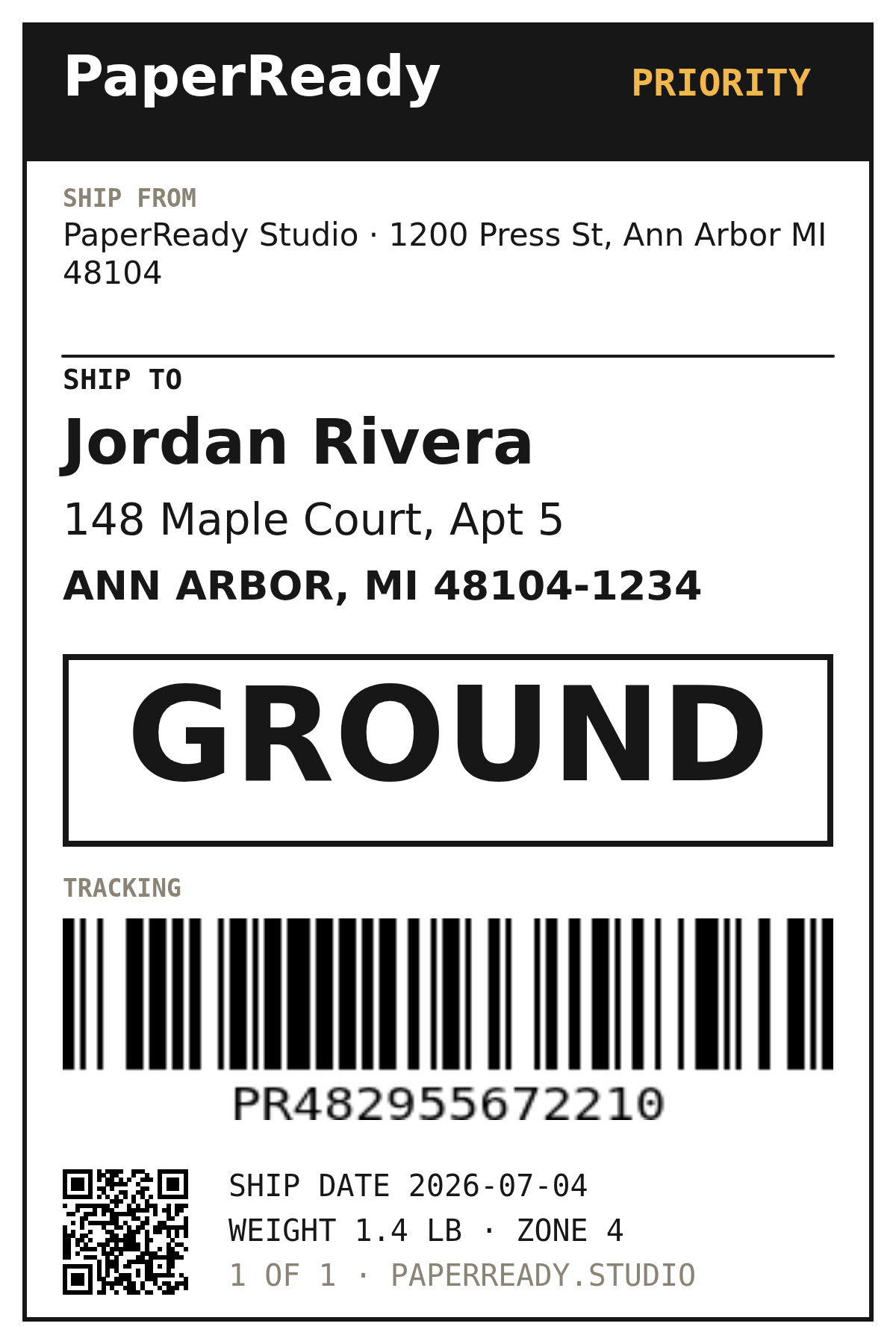
Start with an address, barcode, price tag or name badge. Change the text and preview as you go.
Open the label maker →Open your prepaid label or Canva export. Choose a page, crop the label and set the output size.
Open your label file →Import Excel or CSV, match columns to fields, and check each row. Full batch output is included in Pro.
Preview a spreadsheet →Map your columns once, check the rows and export the whole batch. Save the list and its mapping to your account for the next run.
Three fictional addresses, mapped to a 5160 sheet. Preserve ZIP-code zeros and check the full sheet before printing.
2⅝ × 1 inch · 30 positions on US Letter
Preview address sampleThree fictional SKUs with product and bin names. Check each Code 128 value before running a batch.
2 × 1 inch · one label per PDF page
Preview barcode samplePreview and export a proof of up to five labels without an account. Complete batch PDFs, batch printing and saved lists are included in Pro: $12/month or an optional $120/year. No charge unless you choose a paid plan. PDF export needs no printer installation.
Your draft is saved on this device as you edit. Keep a design in your recent labels and print it again next time.
Choose stock before designing. Sheet output supports a starting label and alignment adjustments for partially used sheets. Find your Avery layout →
Fill in your fields, review missing values and boundary warnings, then print or download the same layout. Use matching paper dimensions and Actual size.
Check Windows, macOS and Linux setup · See Free, Pro and Business
Your first label starts here.
Open your label workspaceNo account required · save your draft on this device
Building printing into your own product? Explore the local and cloud APIs.